How to Enable or Disable Snap Windows in Windows 11
In this short tutorial, I will show you how to enable and disable the Snap Windows feature in Windows 11.
Snap Windows are useful when you want to quickly arrange multiple windows on your desktop. However, they can become irritating and even a hindrance to some people, if you want to position a window on the edge of the screen without triggering auto-snap.
With that little introduction out of the way, let us begin.
- Right-click on the Windows Start icon
 and click on the “System” menu option.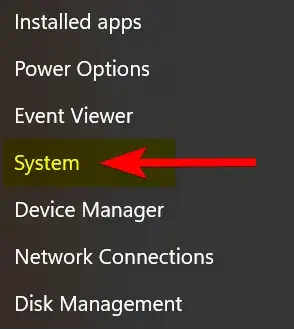
2. On the left-side panel, click on “System”, then click on the “Multitasking” option.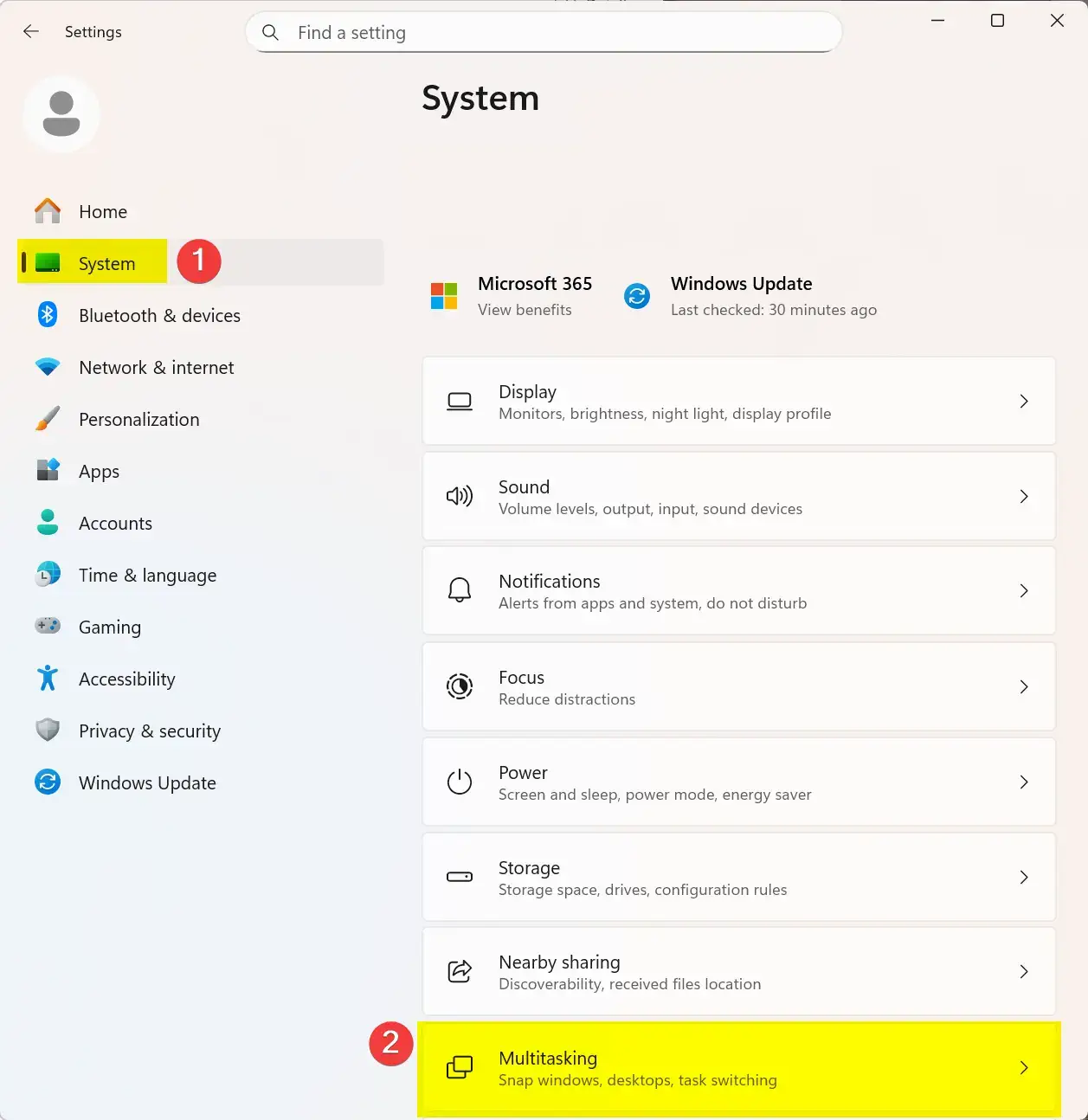
3. Now locate the “Snap windows” option, and click the toggle button to disable it. Of course, if sometime later on you wish to re-enable this feature, just click on the toggle button again to re-enable it.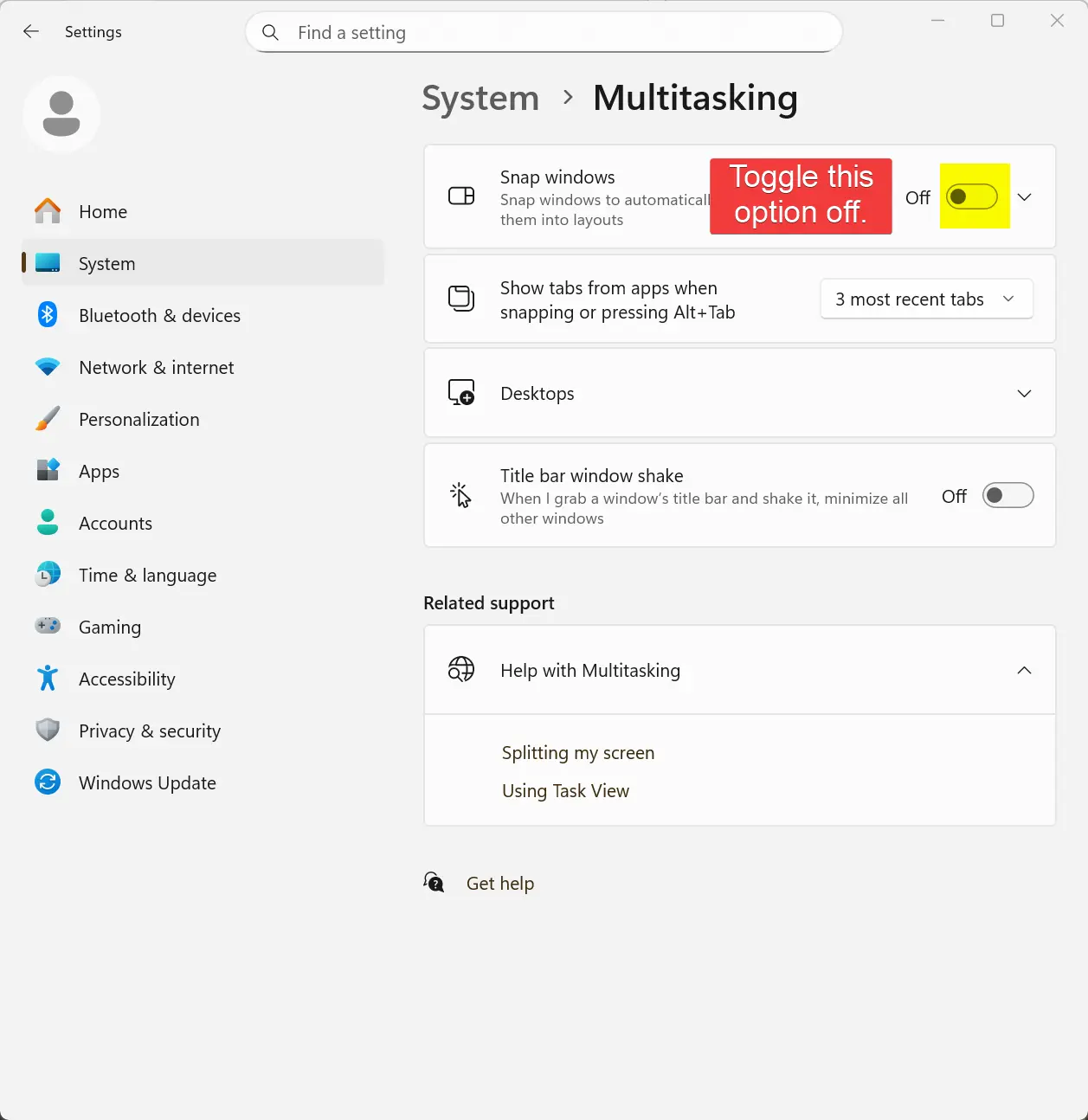
That is the end of this tutorial. I hope someone finds it useful.
Posted in Computers, Operating Systems, Tips & Tutorials
How to Show File Extensions and Hidden Files and Folders on Windows 11
In this blog post, I will explain how to show file extensions, and how to view hidden files and folders on your Windows 11 system.
By default, Windows 11 hides file extensions, and any files and folders marked with the attribute “hidden”. At some point, you may have a need to change a file’s extension manually (e.g., “.txt” to “.ini“). It can also be useful to see any hidden files and folders on your computer.
No reboot is required for these changes to take effect.
- Open the File Explorer.
- If you wish, you can use the [ Windows Key + E ] keyboard combination to open File Explorer.
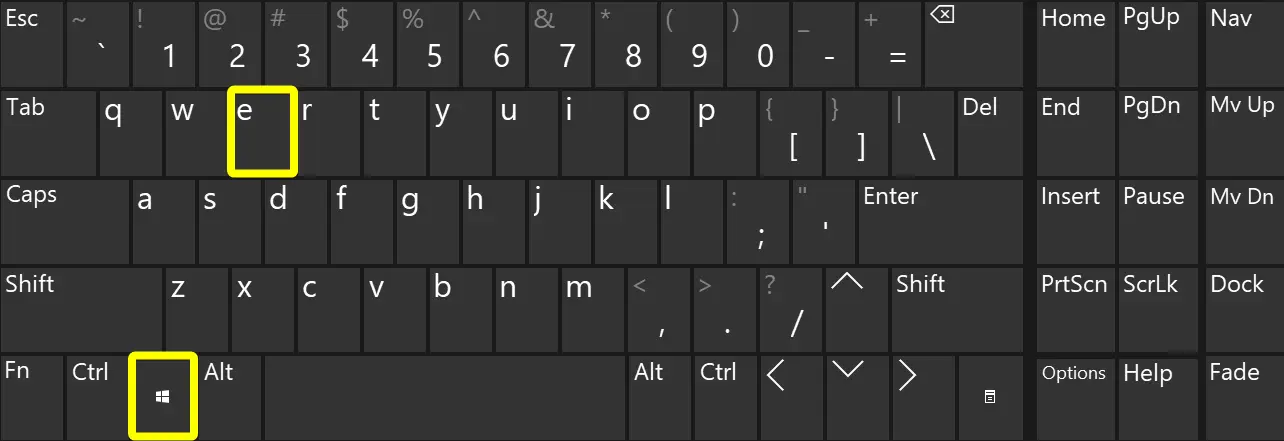
- If you wish, you can use the [ Windows Key + E ] keyboard combination to open File Explorer.
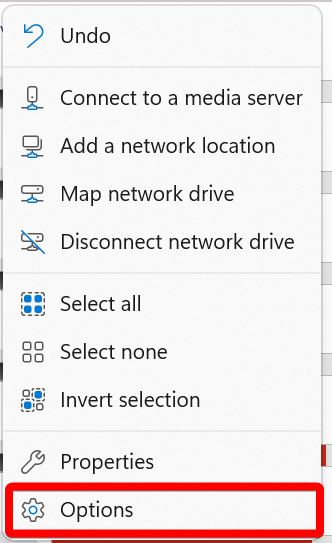
- After the File Explorer opens, click on the ellipsis menu button.

- Now click on the “Options” menu item.
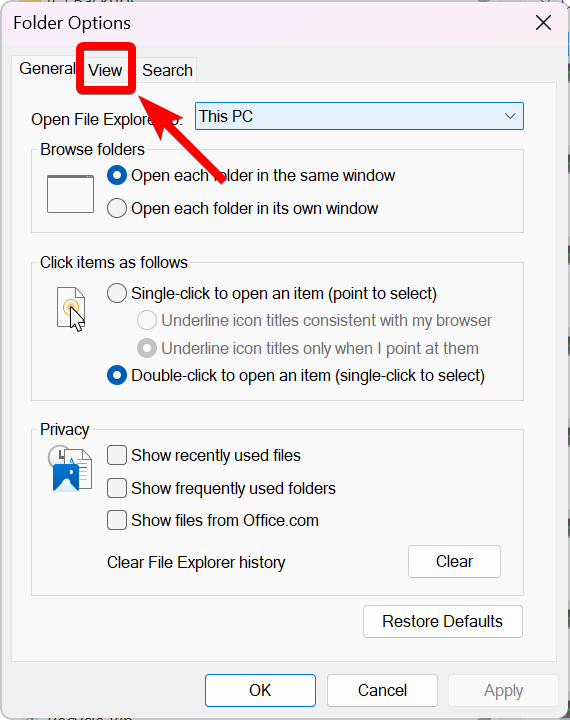
- Click on the “View” tab.
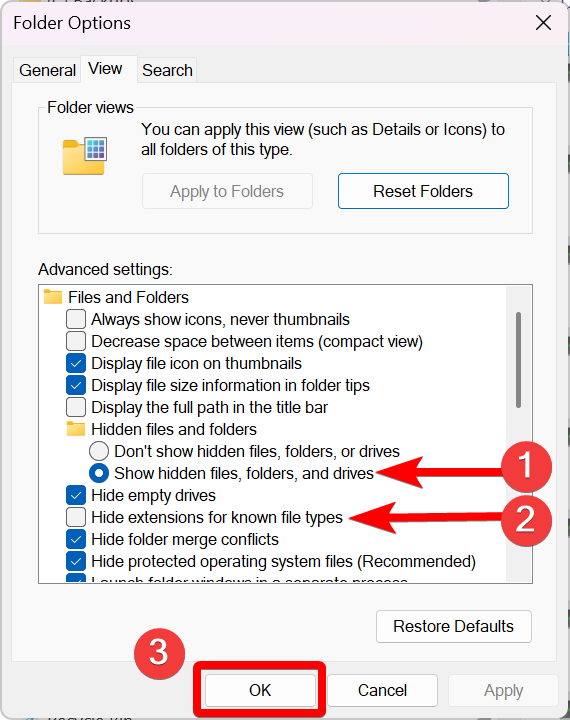
- Now do the following:
- Select the option, “Show hidden files, folders, and drives” (under “Hidden files and folders”).
- Uncheck the option, “Hide extensions for known file types”.
- Click the “OK” button.
That’s it. You now can view file extensions, and view any hidden files and folders on your Windows 11 computer.
I hope you found this tutorial helpful.
Posted in Computers, Internet and Servers, Operating Systems, Tips & Tutorials
Are Web Browser Extensions Safe to Use? (2025 Update)
Several years ago, I wrote about the potential risks associated with web browser extensions (also referred to as “add-ons”) being able to abuse their power and access sensitive user data.
I said if someone has installed a malicious browser extension, their web browsing data (e.g., browsing history, password credentials, what they type into a website, etc.) may get sent directly to the extension’s creator, putting the user’s online security and privacy at risk.
Today, I received an email with a link to a news article, explaining how 18 separate web extensions for Edge and Google Chrome were caught spying on people.
Here is the link to the article: https://www.malwarebytes.com/blog/news/2025/07/millions-of-people-spied-on-by-malicious-browser-extensions-in-chrome-and-edge
[Click here to view article as a PDF.]
This just goes to show, always be mindful about which web browser extensions you choose to install.
Update 08-22-2025
Here’s another example of why you should be careful with web browser extensions.
Chrome VPN Extension With 100k Installs Screenshots All Sites Users Visit
Posted in Android, Computers, General, Internet and Servers, Mobile Phone, Security, Software